 Clew
Clew Writing
Links and embeds
Wikilinks are the connective tissue of a vault: type
[[ and a name, and two notes are joined — no paths, no
URLs, no ceremony. This chapter covers how Clew resolves those names,
how to control a link's text and target, how ![[embeds]]
pull whole notes, images, PDFs, video, and even canvases into the
middle of another note, and what keeps every link working when you
rename and reorganize.
Wikilinks
The basic form is a note name in double brackets. All of these are live in the demo vault:
You write
[[Welcome]]                          link by name
[[Clew Design|the design note]]      with display text
[[Math and Theorems#Dialect extras]] to a heading
[[#Embeds (transclusion)]]           to a heading in this note
[[Syntax Showcase]]                  via a frontmatter alias
How names resolve
Resolution is Obsidian-style, and the rules are worth knowing exactly:
- A bare name matches by file name.
[[Welcome]]finds any note whose file name (without the extension) isWelcome, wherever it sits in the folder tree. Matching is case-insensitive, and the.mdextension may be included or left off. - Ambiguity goes to the shortest path. When two
notes share a name —
Notes.mdin the root andArchive/2023/Notes.md— a bare[[Notes]]resolves to the one with the shortest path. To reach the other one, write the path. - A name containing
/is a path, resolved directly from the vault root:[[Archive/2023/Notes]]is unambiguous regardless of what else is calledNotes. - Aliases resolve as a fallback. A note whose
frontmatter declares
aliases: [Syntax Showcase]is reachable as[[Syntax Showcase]]— but only when no actual file of that name exists, so an alias can never shadow a real note. See Properties and metadata.
Display text and heading links
A pipe sets the link's visible text: [[Clew Design|the design
note]] shows "the design note" and opens Clew
Design. A # targets a heading:
[[Note#Heading]] opens the note and jumps to that heading
(matched case-insensitively), and without display text such a link
renders as "Note § Heading". The two combine as
[[Note#Heading|shown text]]. A link with an empty target —
[[#Heading]] — jumps to a heading of the note it appears
in. The editor completes heading names for you after the
# (see the editor
chapter).
Unresolved links create notes
A link to a name that matches nothing is still a link — it renders
dashed, as a visible loose end. Clicking it creates the
note — name.md in the vault root for a bare name,
or at the written path for a path-form link — and opens it,
which makes the natural drafting flow work: write prose, bracket the
concepts that deserve their own notes, and follow the dashed links
later to fill them in. The Out panel lists a note's
unresolved links so the loose ends are visible in one place
(Panels).
Links to files that are not notes
The target of a wikilink need not be a note. [[sample.pdf]],
[[clew-gradient.png]], or a link to any audio or video
file opens the file in a viewer tab; [[Demo
Canvas.canvas]] opens the canvas itself. Non-note names resolve
by the same shortest-path rule, using the full file name with its
extension.
Following links
In reading mode, links are links: click to follow,
⌘-click to open in a new tab. In the editor,
where a plain click must place the cursor, ⌘-click a
wikilink to follow it, adding ⌥ for a new tab. External
Markdown links — [text](https://…) — open in your system
browser; the rendered note itself never navigates away.
Embeds: transclusion
Prefix a wikilink with !, on a line of its own, and the
target is rendered inside the current note:
You write
![[Clew Design]]

![[Clew Design#Goals]]
A note embed appears as a framed box: a title bar linking to the
embedded note, and below it the note's rendered body — frontmatter
stripped, everything else typeset exactly as the note itself would be.
With a #Heading, only that section is embedded: from the
heading line to the next heading of the same or higher level.
Embeds nest — an embedded note may contain embeds of its own — and the nesting is cycle-safe: a note that embeds itself, directly or around a loop, renders a "(circular embed)" box instead of hanging, and chains deeper than three levels stop there. An embed whose target does not exist renders a "(not found)" box.
An embed also stays current: change the embedded note and every note that embeds it re-renders, including up a chain of nested embeds.
Embeds that fold
A long transclusion can bury the note doing the transcluding. Add
collapsed or open as the last segment of the
link and the embed gains a disclosure triangle:
You write
![[Week 3]]                     a plain embed — no triangle
![[Week 3|collapsed]]           folds; starts closed
![[Week 3|open]]                folds; starts open
![[Week 3|Reading list|open]]   …with "Reading list" as the title
Clicking the title bar folds or unfolds it — and Clew writes the
new state back into your note, swapping collapsed
for open on that line. The state therefore lives in the
file: it travels with the vault, into git, and onto whatever else opens
the note. Clicking the title text still opens the embedded note,
as it always did; the rest of the bar is the fold. On the iPad a tap on
the bar does the same, and writes the same word back.
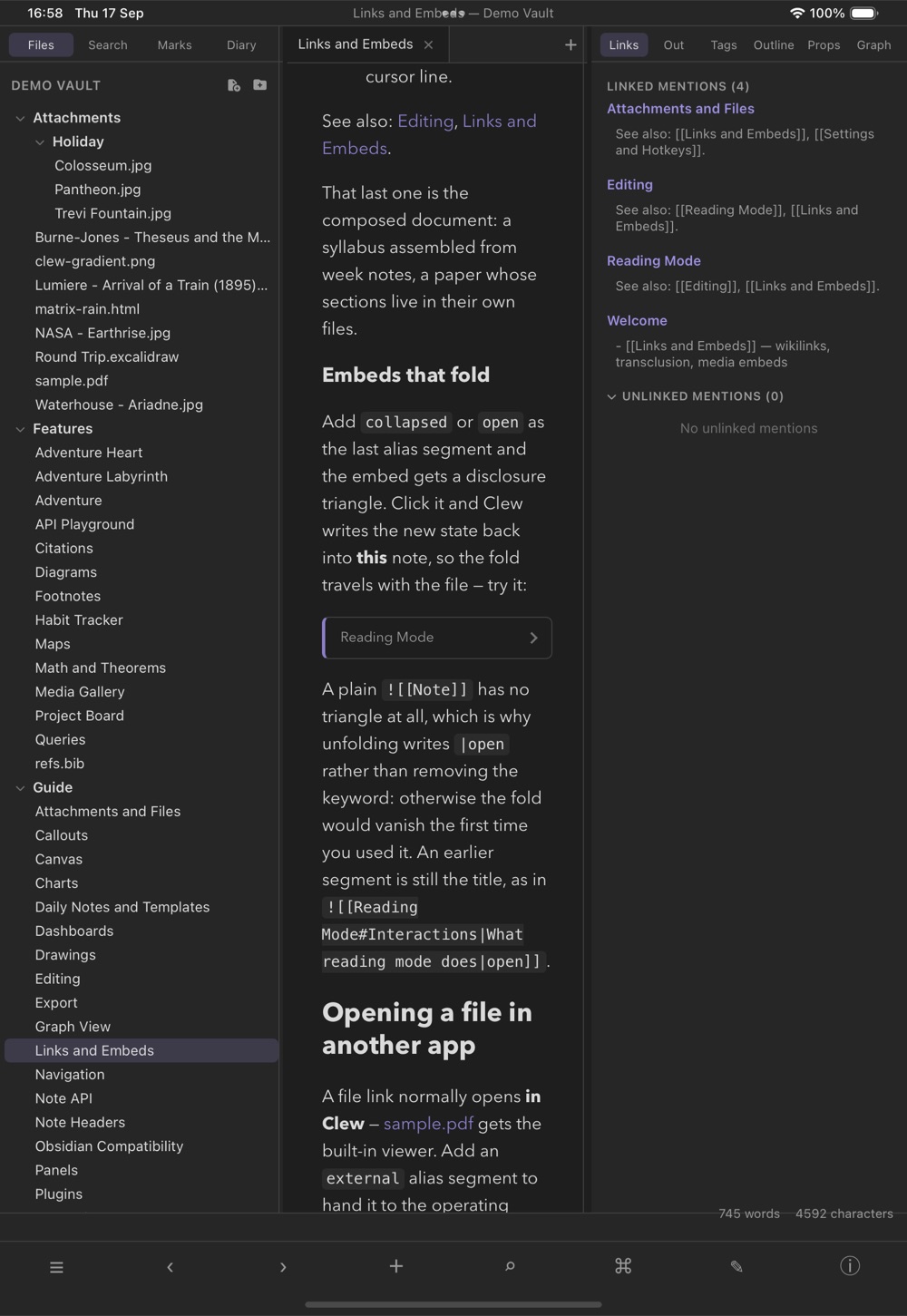
collapsed embed, folded to its title bar. A tap
unfolds it and writes open into the note.
Note that open is not the same as leaving the keyword off.
A bare ![[Week 3]] has no disclosure triangle at all, so
unfolding writes |open rather than removing the keyword —
otherwise the fold would vanish the first time you used it. Remove the
keyword by hand to go back to a plain embed. An embed inside another
embedded note folds too, but its line belongs to a different file, so
that one is not written back.
How much frame an embed draws
By default an embed is a framed box: an accent stripe down its left edge, a hairline border, rounded corners, and a title bar naming the note. That is right when the embed is a quotation of somewhere else — and wrong when what you actually want is the other note's words, here, as part of this one. Two keywords turn the frame down:
You write
![[Week 3]]          the framed box — the default, unchanged
![[Week 3|quiet]]    the accent stripe alone, still naming the note
![[Week 3|bare]]     no frame at all, no title
Quiet keeps the stripe and the title and loses the panel around them: still visibly a transclusion, but it no longer interrupts the page. Bare keeps nothing. The transcluded note's blocks sit in the host note's own flow, spaced exactly as if you had typed them there — no box, no stripe, no filename, and no link back to the source. Use it for the composed document: a syllabus assembled from week notes, a paper whose sections live in their own files.
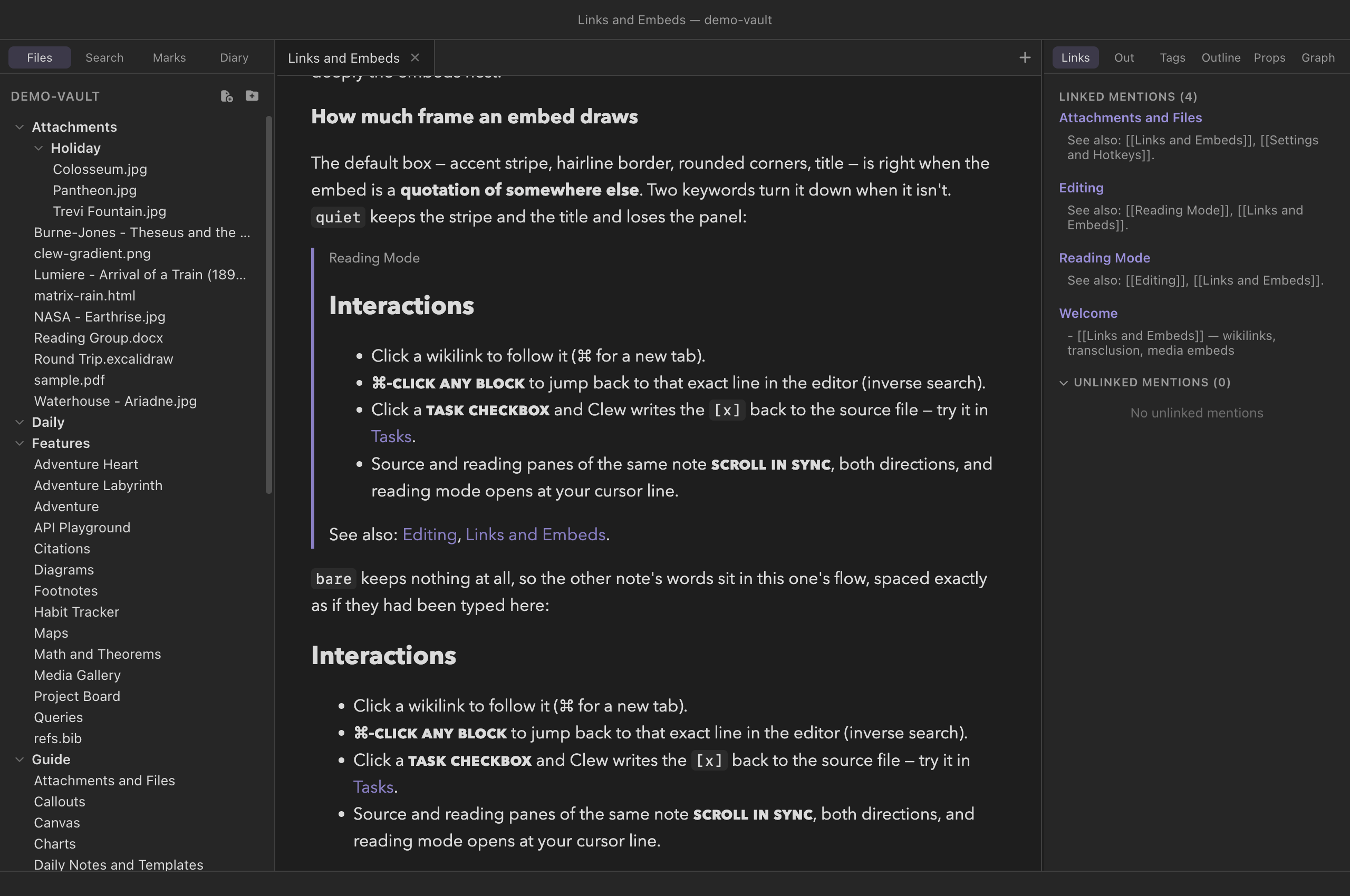
quiet, the stripe
and the title without the panel, and bare, sitting in the
prose as if it had been typed there. The folded form is the figure
above.
The keywords combine with the fold and with a title, in any order, so
![[Week 3|Reading list|quiet|collapsed]] is a folded, quietly
framed embed titled "Reading list". Toggling the fold rewrites them in a
canonical title|chrome|state order. Bare is the exception:
it draws no title bar, so there is nothing to fold — a bare embed asked
to collapse stays bare, since a folded bare embed would render as
nothing at all.
internal-embed is-bare class, so a
vault stylesheet can put its own
decoration back — a marker in the margin, a tint, whatever suits the
document.
![[…]] stands
on its own line. In the middle of a sentence, the !
renders as a literal exclamation mark and the [[…]]
becomes an ordinary link — the text flows on, nothing breaks, but
nothing is transcluded either.
Block references
A heading link points at a section. A block reference
points at one block — a single paragraph, list item, table, or
code block. Mark the block with a ^identifier, then link to
it with [[Note#^identifier]] or transclude it with
![[Note#^identifier]]. This is Obsidian's syntax exactly, so
a vault that already uses it opens here unchanged.
You write
Ideal observers are a modelling convenience, not a
claim about anyone. ^ideal-obs

Elsewhere: as argued in [[Method#^ideal-obs]].
The marker goes at the end of the block's last line. Tables and fenced code blocks have no room for a trailing word, so theirs goes on a line of its own directly beneath — which is where Clew writes it, and where it reads one from:
You write
| Sender | Receiver |
| ------ | -------- |
| 1      | A        |
^payoff-table
Markers are invisible in reading mode — the identifier
is machinery, not prose, and a note peppered with visible
^a3f9c1 would be unreadable. Following a block reference
scrolls to the block: to the paragraph's first line, to the top of the
table, to the opening fence of the code block — never to the marker
itself, which would leave the thing you asked for above the window.
Copying a block link
You will rarely type an identifier. Put the cursor anywhere in a block
and run Copy Link to Block (the Edit
menu, or the command palette). Clew writes a six-character identifier
into the note if the block has none, then puts
[[Note#^id]] on the clipboard. Run it twice on the same
block and you get the same link back — a block is named once, and the
command never accumulates identifiers.
Going the other way, typing #^ after a note name inside a
[[ link lists the identifiers that note already has, with
the line each one sits on (see the
editor chapter).
^ is superscript —
x^2 is x². So a block marker must be preceded by a
space, which is what tells the two apart: x^2 ending a
paragraph stays an exponent, while … ^x2 is a block
identifier. Identifiers use Obsidian's own character set, letters,
digits and hyphens.
Media embeds
When the target of an embed is a media file, it renders natively:
- Images —
![[clew-gradient.png]]shows the image inline. - PDFs —
![[sample.pdf]]embeds Clew's full PDF viewer in a framed box: page, search and annotate in place, with a title bar linking to the file's own viewer tab and a ⟷ button that widens the embed to the window. - Audio and video —
![[clip.mp3]]and![[film.mp4]]get playback controls. - Canvases —
![[Demo Canvas.canvas]]embeds a live, read-only view of the canvas that you can pan and zoom; see The canvas. - Office documents —
![[Report.docx]]embeds a static thumbnail of the document (rendered once and cached; refreshed when the file changes), and![[Report.docx|live]]embeds a full editable LibreOffice. The details, costs and caveats live in Office documents.
Sizes and captions
Images and video take Obsidian's size syntax after a pipe. The last
pipe segment, when it is a bare number or a
widthxheight pair, is read as a
size in pixels; any earlier segments form the alt text:
You write
![[clew-gradient.png|200]]                        width 200
![[clew-gradient.png|300x200]]                    width 300, height 200
![[clew-gradient.png|A stretched gradient|320x60]] alt text, then size
A segment that is not a well-formed size — |300x,
|x200, |large — is treated as alt text, so
nothing is ever silently swallowed. The sizes become the image's HTML
width and height attributes (CSS pixels); in
LaTeX and PDF export, images are scaled to
match (a pixel width converts to points at 0.75 pt per pixel), and
an image without a size fits the line width.
When a pixel width is not enough: @image and @video
The pipe syntax is Obsidian's, and it thinks in pixels. That is the wrong
unit for a document you also mean to print: 400 px is a fixed slab of
screen, whereas what you usually want is this much of the text
width, on paper as well as on screen. The engine's @image
and @video directives take a richer attribute set and
translate it per output format.
You write
@image(diagram.png)[A small-world graph]{width=0.6}

@image+(diagram.png)[Centred]{width=0.6 align=center}

@video(clips/run.mp4)[A run of the model]{width=0.6 poster=clips/still.png}
The parentheses hold the path — the one thing neither directive can do
without. The brackets are alt text. The braces are attributes. The
+ in @image+ makes it a block of its own rather
than something sitting in a line of prose, which is what
align needs to mean anything: on the inline form it is
ignored, with a warning.
Four attributes — width, height,
scale and align — are interpreted rather than
passed through, so one source serves both outputs:
| You write | Means |
|---|---|
width=0.6 | Six tenths of the text width — 0.6\linewidth in LaTeX, 60% in HTML |
width="60%" | The same thing, said the other way |
width=8cm | A physical size, verbatim in both (CSS and LaTeX share cm, mm, in, pt) |
width=400px | Pixels — 400px on screen, 300bp in print. A bare number above 1 means pixels too |
align=center | Centred; also left and right. Block form only |
A tex- or web- prefix confines an attribute to
one output and beats the unprefixed key there, which is how one figure can
be 50% on screen and 80% on the page:
{width=0.5 tex-width=0.8 web-loading=lazy}. Anything else in
the braces passes through as an ordinary HTML attribute
(class, id, srcset,
controls, …) and is ignored by LaTeX. For genuinely arbitrary
LaTeX options there is tex-options.
One thing to know before it bites: a backslash is not legal
inside the braces. Writing
{width="0.8\linewidth"} is the natural mistake, and the
attribute grammar rejects the whole set — which is exactly why
width is a semantic key you give 0.8 to instead.
The engine now warns and names the offender when this happens; it used to
drop the attributes in silence.
A video cannot play on paper, so @video degrades rather than
translates when exporting to LaTeX. By default it becomes the poster frame
hyperlinked to the video, which works in every PDF viewer; the
Video mode setting (or {tex-mode=…} on one video)
can instead embed the stream for Acrobat, attach the file, or print the
still frame alone. Where a poster is needed and none was given, one is
extracted from the first frame if ffmpeg is available.
None of this replaces anything. A plain ![[image.png|300]] and
a standard Markdown  both still work exactly as
before; reach for @image when you want the extra control, and
for @begin(figure) when you want a numbered caption too — the
two compose.
Embedding a presentation
A slide deck can live inside a note, running, with
@reveal[…]:
You write
@reveal[Talks/intro]

@reveal[Talks/intro/index.html]{height=420px}

@reveal[http://localhost:8888/prez/teaching/voting-theory/]{aspect=4:3}
The target is either a path inside the vault — an HTML
file, or a folder holding an index.html, which is what a
reveal.js export looks like — or an http(s) URL. The URL
form is the one that matters for a deck your web server builds rather
than stores: a .php file served straight out of the vault
would be its source code, not a presentation, and Clew says so rather
than showing you the source.
The frame is interactive: arrow keys, the deck's own controls, its fullscreen button. It loads only when scrolled into view, so a note can hold several decks without starting all of them at once.
Size and style
| Attribute | Effect |
|---|---|
width=80% | Frame width; the default is the full width of the note column. A bare number means pixels. |
height=420px | A fixed height. Without one the frame keeps an aspect ratio instead, so it reflows with the column. |
aspect=4:3 | The shape to keep when no height is given; the default is 16:9. |
style="…" | Any further CSS, verbatim — a border, a margin, a shadow. |
class="…" | An extra class, for a vault stylesheet to hook. |
title="…" | The frame's accessible name; the default is “Embedded presentation”. |
aspect=4:3 or aspect="4/3" — a bare
4/3 is a syntax error, and the whole attribute set is lost
when one attribute fails to parse. Quoting always works:
{height="420px" width="80%"}.
Two other spellings of the same directive come free with the dialect:
@reveal+[…] on its own line is the block form, and
@begin(reveal)…@end(reveal) the environment form. They take
the same attributes and produce the same frame.
Renames and moves rewrite links
Renaming or moving a note — from the file explorer, or by dragging it into another folder — rewrites every wikilink to it, across the whole vault, in the same operation. Renaming a folder does the same for every note inside it. The rewriting is aware of how each link was written:
- a link written as a path (
[[Projects/Roadmap]]) gets the new path; - a link written as a bare name (
[[Roadmap]]) is touched only when the file's name actually changed — a pure move between folders leaves bare-name links alone, because they still resolve; - display text is preserved: only the target inside the brackets changes.
The rewriting extends beyond Markdown. Canvas files reference notes,
images, and PDFs by path, and a rename updates every file reference in
every .canvas in the vault too — so a reorganized vault's
canvases keep pointing at the right files.
Backlinks and unlinked mentions
Every link is indexed from both ends. The Links panel shows the active note's backlinks — who links here, grouped by source, with the line each link sits on — and below them unlinked mentions: places where the note's name or an alias appears in plain text without being a link, each with a Link button that turns the mention into a wikilink where it stands. The panels have a chapter of their own.
Opening a file in another app
A link to a file normally opens it in Clew — a PDF in the built-in viewer, an image or a recording in a viewer tab. Sometimes that is not what you want: the PDF belongs in your annotating app, the spreadsheet in the real spreadsheet program. Two link forms hand the file to the operating system instead, so it opens in whatever application owns the type:
[[paper.pdf|external]]
[[paper.pdf|Read the paper|external]]
[Open the report](file:///Users/you/Documents/report.pdf)
The first is Clew's own: add external as an alias segment
and the link opens the file outside Clew. A second segment is still the
link's caption, so [[paper.pdf|Read the paper|external]]
reads as prose; external alone is a mode rather than a
caption, so the file's name is used. It works in reading mode and on a
⌘-click in the editor alike, and the file must be in the
vault.
The second is the file:// URL, which works the same way in
Obsidian — so notes that came from there keep working. Unlike the
alias, a file:// link may point anywhere on your disk,
which is the reason it exists: a vault of notes about files
kept elsewhere. Only local paths are accepted; a
file:// URL naming a remote host is refused.
file:// link can only reach a
file inside the open vault, because nothing outside the app's
sandbox is reachable, and a link to a folder is refused with a notice
rather than opened.
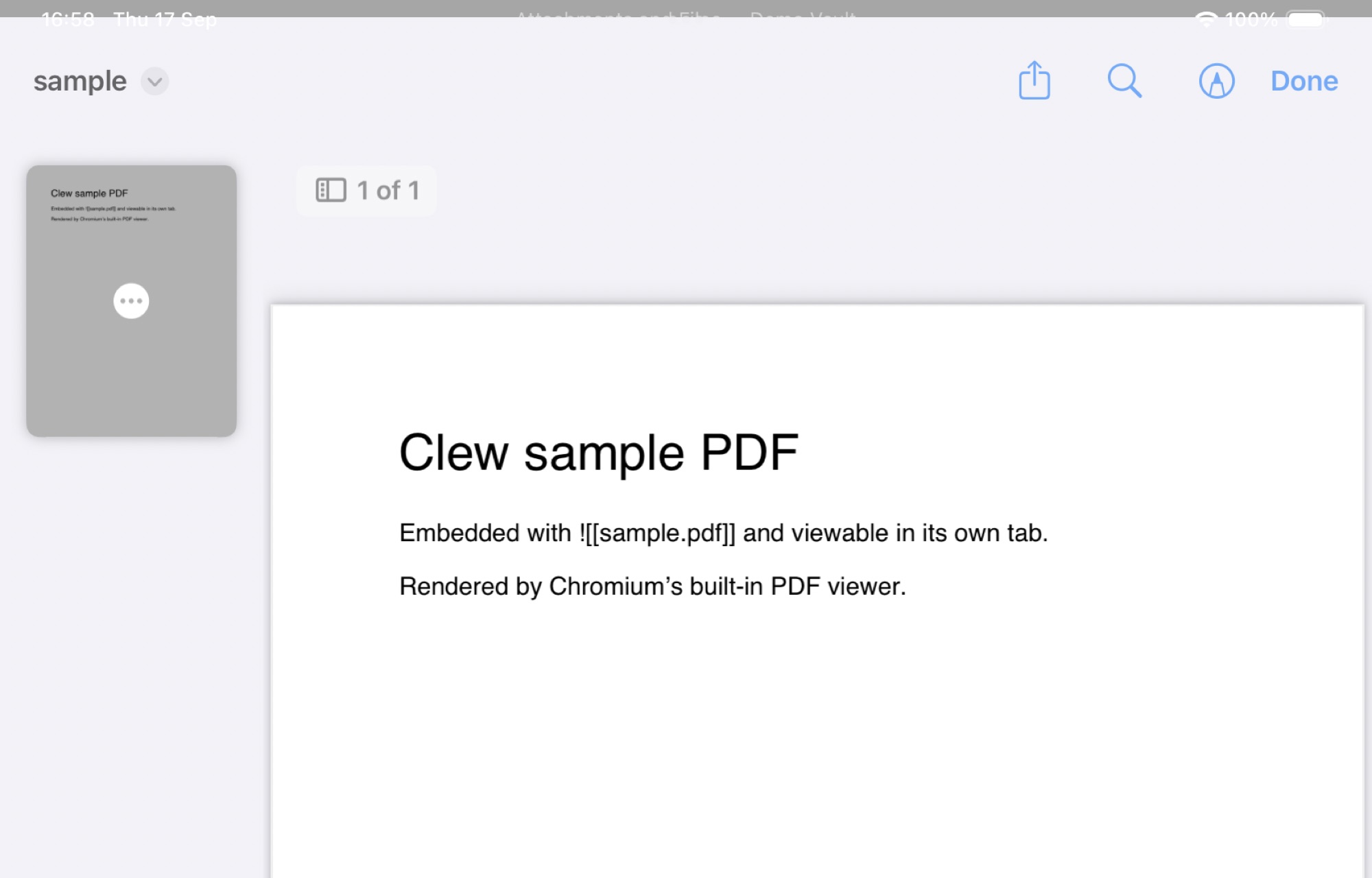
external link on the iPad: the file opens
in Quick Look, and its share button is the way into any other app..app, .exe, or a shell script,
that means running it. A note is content, and content you
received should never be one click from executing something, so Clew
refuses those extensions by name and says so instead. The refusal is
a speed bump, not a sandbox: an ordinary document can still be
opened by an application you have configured to do surprising
things, so treat links in an unfamiliar vault the way you would
treat its attachments.
Links beyond the vault
Because Clew fully supports symbolic links (Vaults and files), a vault can weave in folders that live elsewhere on disk: symlink a project's notes folder into the vault and its files are first-class citizens — indexed, searchable, linkable, and rendered — even though the real files sit outside the vault. Wikilinks to them resolve like any others, and edits save through the link to the real file. Cycles are detected and walked once, so a link loop cannot hang the indexer.
![[…]] embed forms, and the size pipe all match, so a
vault's links mean the same thing in both apps. Two asymmetries to
know: Clew also treats .jmd files as notes, which
Obsidian does not index — stick to .md in a shared
vault — and symlinked folders, first-class in Clew, are largely
ignored by Obsidian.
Reference
Link and embed forms:
| Form | Meaning |
|---|---|
[[Name]] | Link by note name (case-insensitive; shortest path wins on ties) |
[[Folder/Name]] | Link by explicit vault path |
[[Name|text]] | Link showing text |
[[Name#Heading]] | Link to a heading (shows "Name § Heading") |
[[#Heading]] | Link to a heading in the same note |
[[Name#^id]] | Link to a block (shows "Name ¶ id") |
… ^id | Mark the block that ends on this line |
^id (own line) | Mark the table or code block above |
[[file.pdf]], [[file.canvas]] | Link to a non-note file (opens viewer / canvas) |
[[file.pdf|external]] | Open the file in the OS default app (above) |
[[file.pdf|text|external]] | The same, showing text |
[…](file:///path) | Obsidian-style: open a file anywhere on disk in its default app |
![[Name]] (own line) | Embed the note's rendered body |
![[Name#Heading]] | Embed just that section |
![[Name#^id]] | Embed just that block |
![[Name|quiet]] | Embed with the accent stripe only (above) |
![[Name|bare]] | Embed with no frame and no title at all |
![[Name|collapsed]] | Foldable embed, starting closed (above) |
![[Name|open]] | Foldable embed, starting open |
![[img.png|300]] | Media embed, width 300 px |
![[img.png|300x200]] | Media embed, width × height |
![[img.png|alt text|300]] | Alt text, then size |
@image(p)[alt]{attrs} | Image with translated attributes (above) |
@image+(p)[alt]{attrs} | The same as its own block — what align needs |
@video(p)[alt]{attrs} | Video, degrading to a poster frame in print |
![[x.excalidraw]] | An Excalidraw drawing, read-only |
[text](url) | External link — opens in the system browser |
File types that embed as media, by extension:
| Kind | Extensions | Renders as |
|---|---|---|
| Image | .png .jpg .jpeg .gif .webp .avif .svg .bmp | Inline image (size pipe applies) |
.pdf | Embedded PDF viewer (annotatable) | |
| Audio | .mp3 .m4a .wav .ogg .flac | Audio player |
| Video | .mp4 .webm .mov | Video player (size pipe applies) |
| Canvas | .canvas | Live read-only canvas view |
| Drawing | .excalidraw .excalidraw.md | Read-only Excalidraw view (chapter) |
| Office | .docx .xlsx .pptx .odt .ods .odp | Static thumbnail; |live for an editable LibreOffice (chapter) |
See also
- The editor — link completion, ⌘K, and ⌘-click in source mode.
- Attachments and files — how pasted and dropped files become embeds.
- Properties and metadata — declaring the aliases that links can resolve through.
- Panels — backlinks, outgoing links, and unlinked mentions.
- The canvas — canvas embeds, and notes embedded in canvases.
- Vaults and files — symlinks, and moving files in the explorer.